How to make a presentation in Telegram: step by step
Making a presentation in the SlidesGo bot takes a few simple steps: type your topic, pick the settings, mark the photos and get a finished PPTX file. Every step is shown below with screenshots.
Video guide: making a presentation in the bot
Before you start
- All you need is Telegram and @slidesgobot — nothing else.
- Your balance must cover the price of a presentation. New users get a welcome bonus, and the current price is in the bot's /help command. If the balance is too low, the bot shows a top-up button.
Step 1. Tap Presentation
Tap /start in the bot — the main menu appears at the bottom. Tap  Presentation.
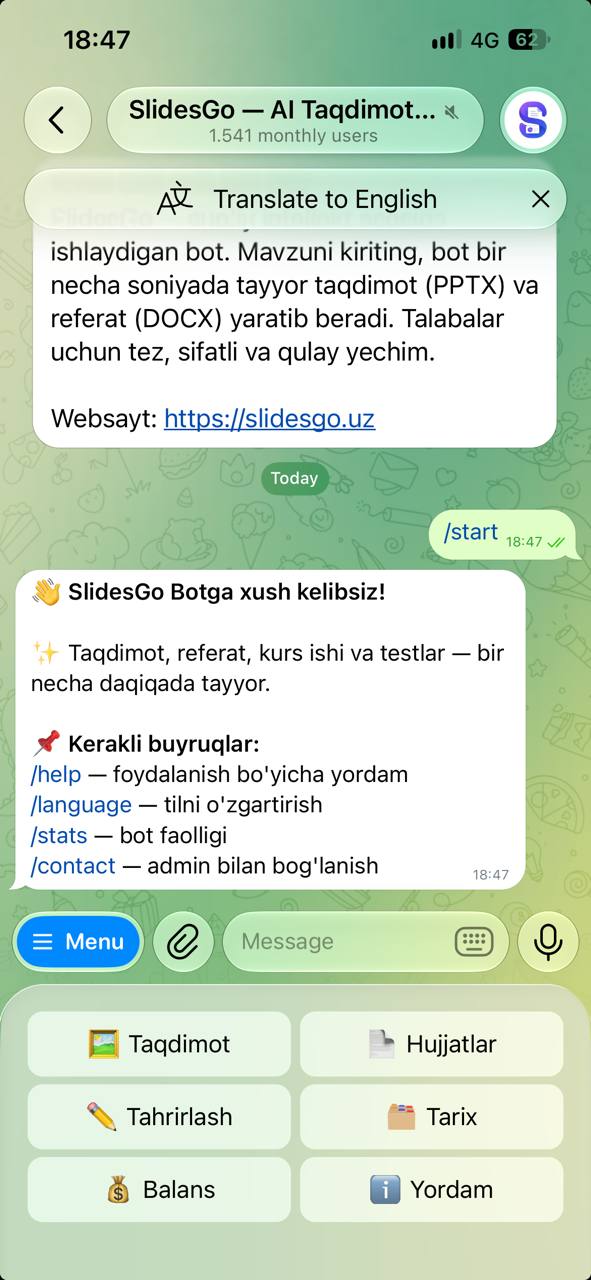 Presentation» in the main menu
The bot asks for a topic and shows a  Mini App button. This is the easiest route: everything is filled in on a single screen.
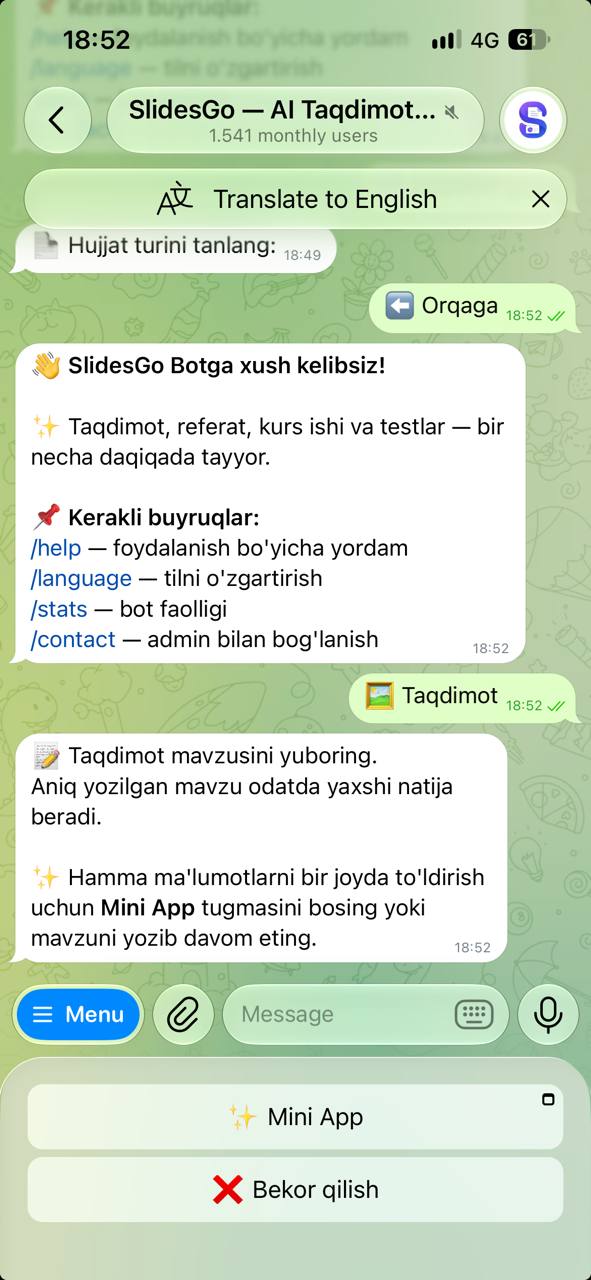 Mini App» button
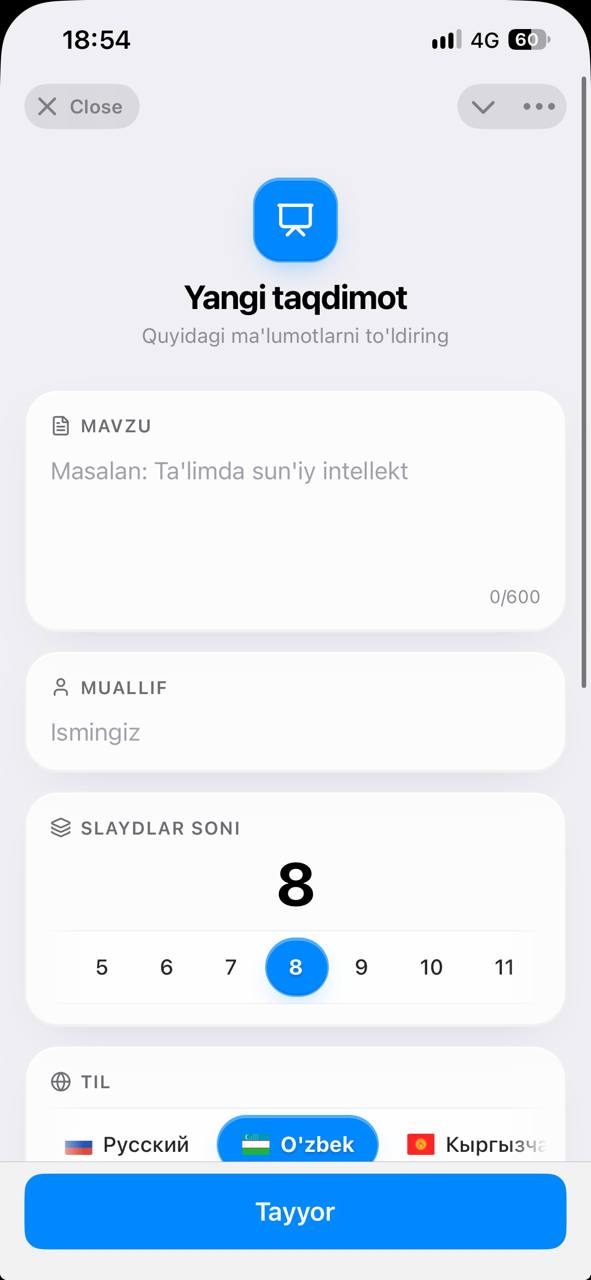
Step 2. Fill in the details in the Mini App
- Topic — 8 to 600 characters. A clear topic gives a better result: instead of “Ecology”, try “Sustainable use of water resources in Uzbekistan”.
- Author — your Telegram name is filled in; change it if you like.
- Number of slides — 3 to 15. The title, contents and “Thank you” slides aren't counted: the bot adds those itself (+3).
- Language — the language of the presentation text: Uzbek, Russian, English, Kyrgyz, Kazakh or German.
- Theme — 30 ready-made themes, picked by swiping sideways.
When everything is set, tap Done at the bottom of the screen.
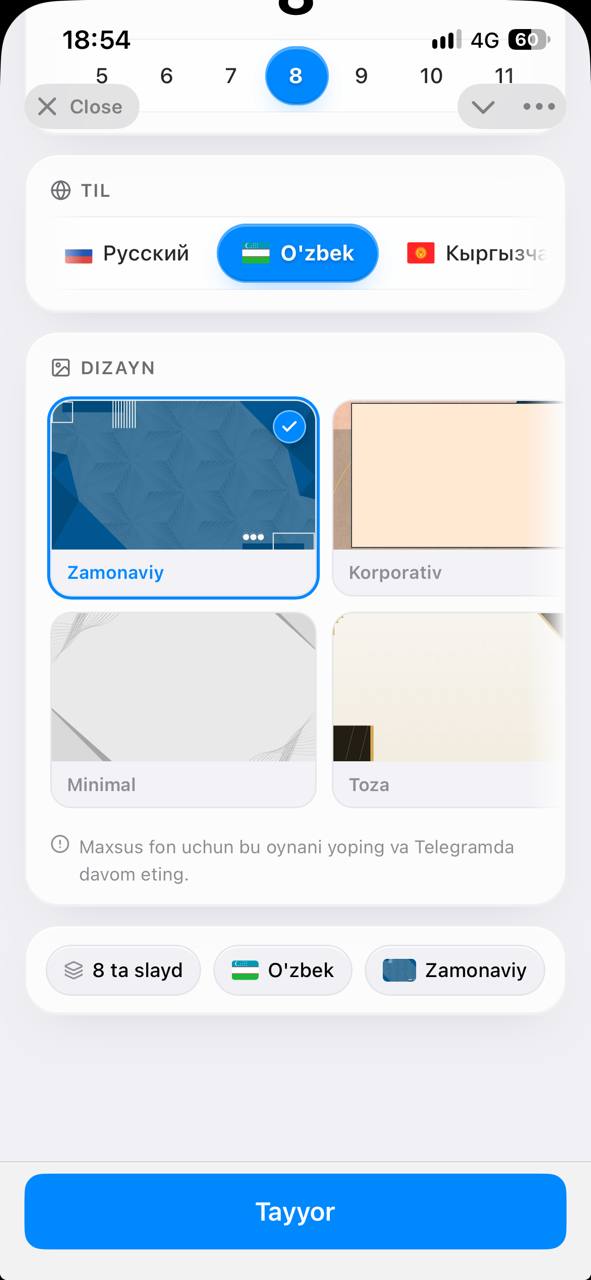
You can't pick your own background in the Mini App. If you want a custom background or a source file (PDF, Word, TXT), close the Mini App and send your topic as a normal message — the bot asks for the rest in the chat.
Creating it in the chat (without the Mini App)
If you send the topic as a normal message, the bot asks its questions one at a time:
- Topic — 8 to 600 characters.
- Source material — send a PDF, Word (.docx) or .txt file and the slides are based on it. Don't need one? Tap
 Skip. For large files only the beginning (about 8,000 characters) is used.
- Author — your name is already on a button, just tap it.
- Number of slides — type a number from 3 to 15.
- Language — pick a button.
- Background — a numbered theme from 1 to 30, or Custom Background (send your own image, then choose the text color — black or white).
Step 3. Wait for the text
The bot writes the presentation text and shows an estimate of the time left. Don't close the bot — the result arrives in this same chat.
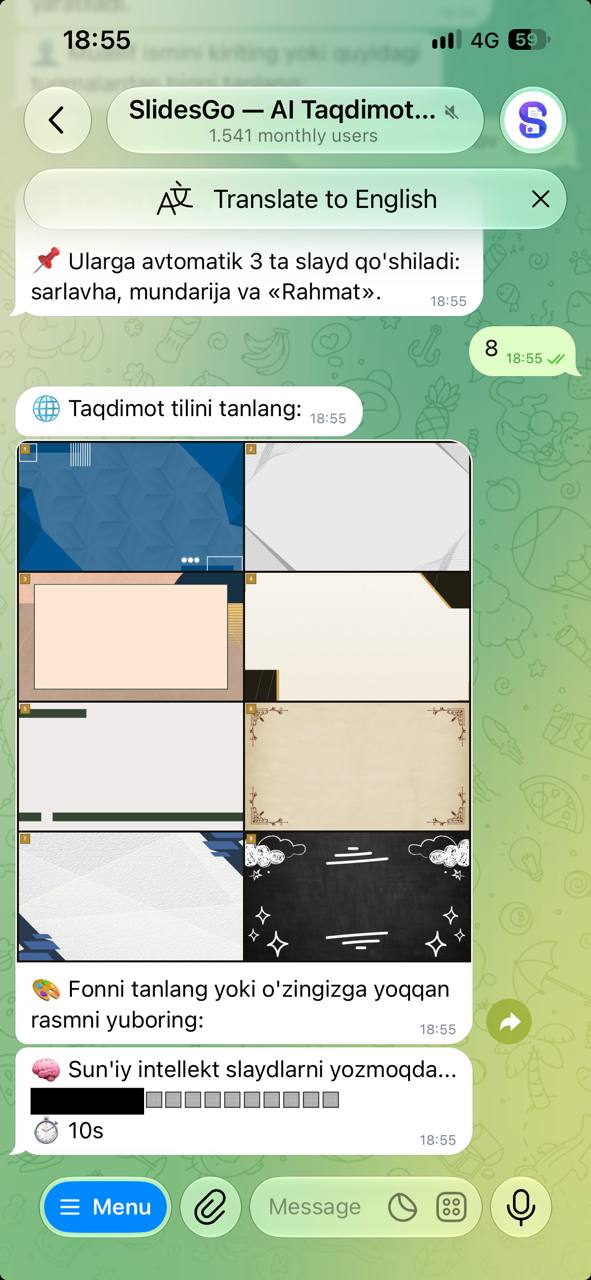
Step 4. Add photos (optional)
Once the text is ready, the bot opens the  Let's add photos screen — one button per slide. If you don't need photos, just tap
 .
- Slide 1, Slide 2… — tap a slide and send your own photo. A slide with a photo gets a mark.
 AUTO — the bot finds a photo for the slide's topic. Mark the slides you want (); tap again to unmark, and
 goes back. Up to 5 slides per presentation.
Automatic search may be switched off for a while — in that case, send the photos yourself.
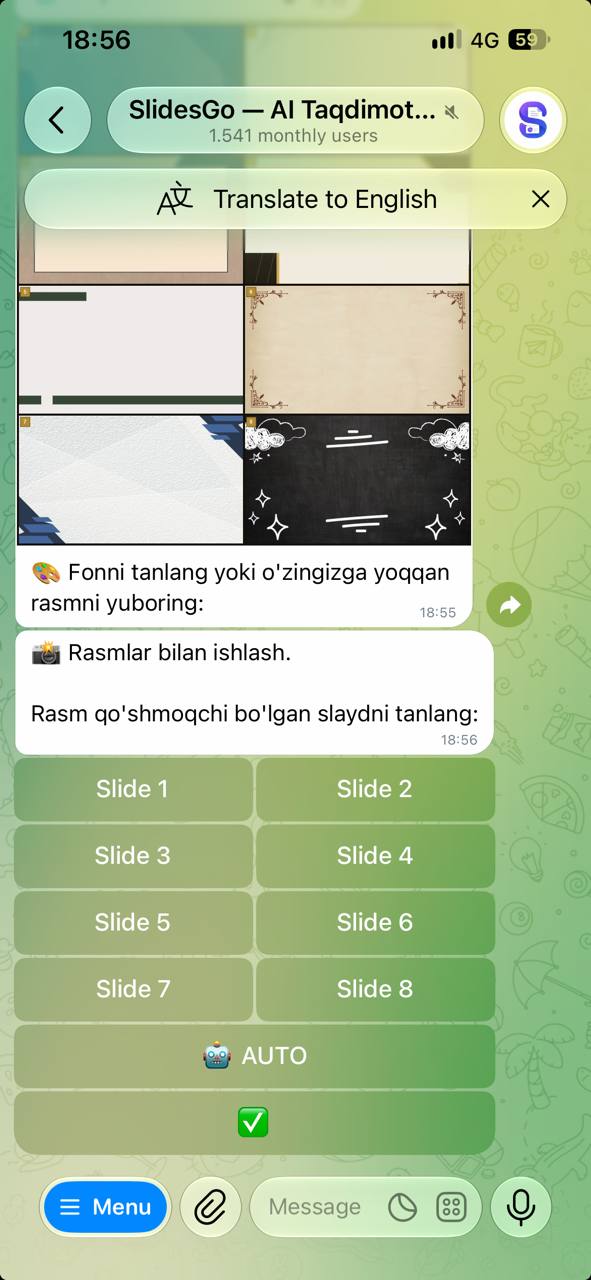
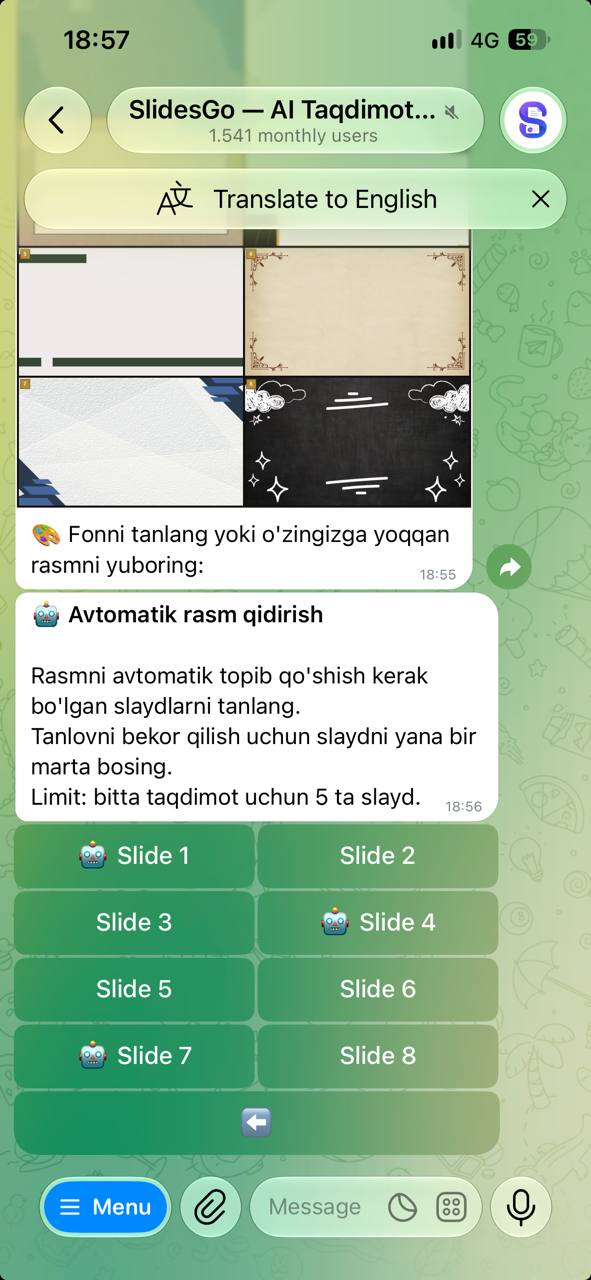
When you're done choosing, tap at the bottom.
Step 5. Get your file
The bot sends the PPTX file. Money is taken only after the file is built successfully — the amount charged is shown in the chat. Open the file in PowerPoint, Google Slides or Keynote.
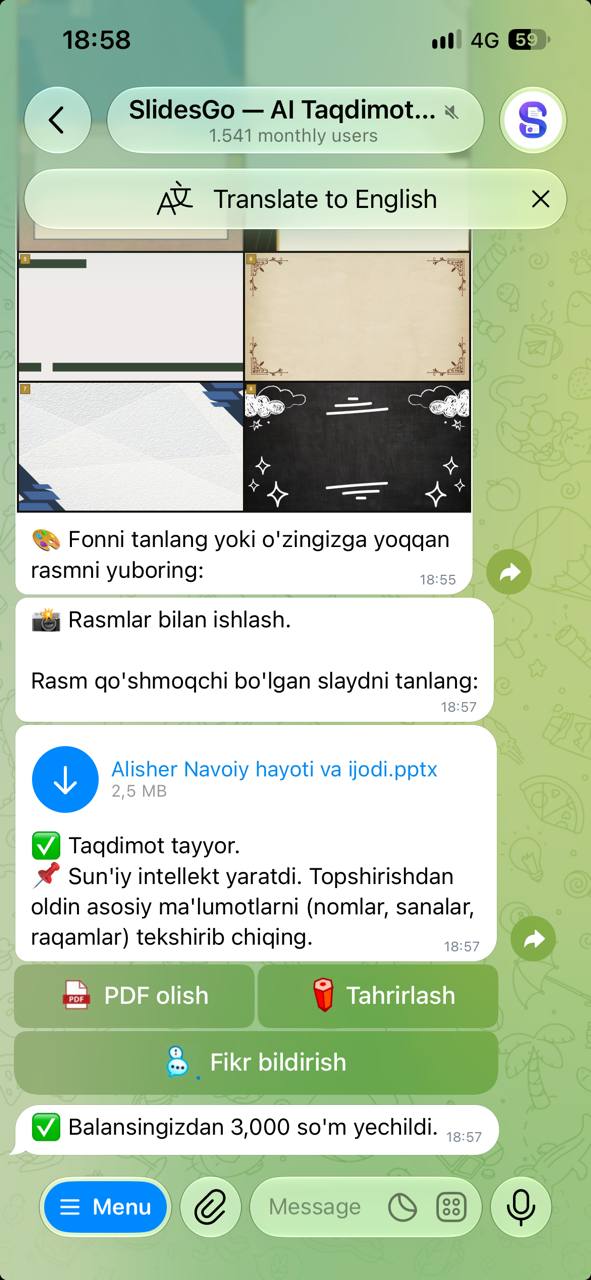
The presentation is generated by AI. Before submitting, check names, dates and figures.
Editing it afterwards
If the result isn't quite right, there's no need to start over. The Edit button under the file, or  Edit in the main menu, lets you change the title, author, theme, slide text and photos. Editing is free, and the updated file comes back to the chat. All your presentations are kept in
 History.
Tips for a better result
- Make the topic specific: what, for whom, and from which angle.
- Match the slide count to your speaking time — extra slides thin the content out.
- For important topics, send your own source material (when creating through the chat).
- Upload your own photos for the slides that matter and use AUTO for the rest.
For the bot's overall features: What is SlidesGo.uz and how does it work?